
Grant access to a Feishu Bitable
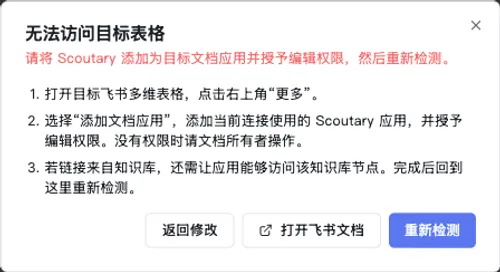
Before Scoutary can sync captured data to a Feishu Bitable, its app needs edit access to the target document. If entering a link opens the “Cannot access the target table” dialog, follow these steps.
Open the target document
In the access error dialog, click “Open Feishu document” to open the Bitable linked in your sync configuration. Keep Scoutary open so you can check the table again after granting access.
Find Add document app
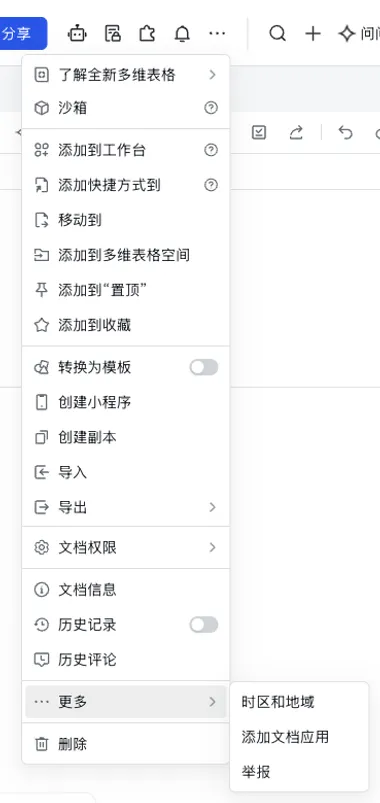
Click the three-dot More button in the upper-right corner of the Bitable. Open the “More” submenu and choose “Add document app”. Some Feishu interfaces show “Add document app” directly in the first menu.
Find and select the Scoutary app
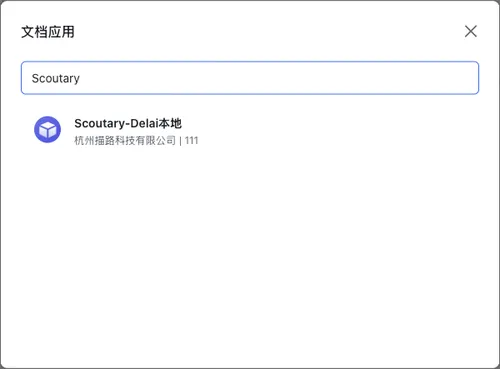
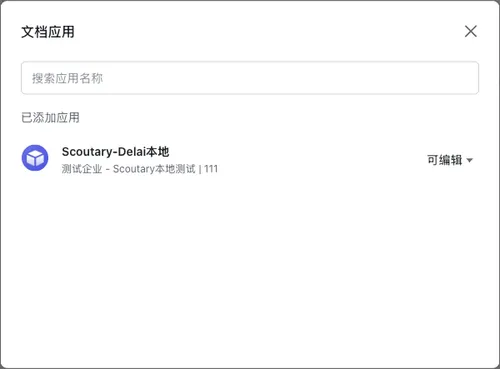
Search for Scoutary in the document apps dialog. Select the app used by your current Scoutary connection. If several apps have similar names, check the app and organization before choosing one.
Grant Can edit access
Confirm that the permission is “Can edit”, then click “Add”. Scoutary writes captured data to the target table, so read-only access is insufficient.
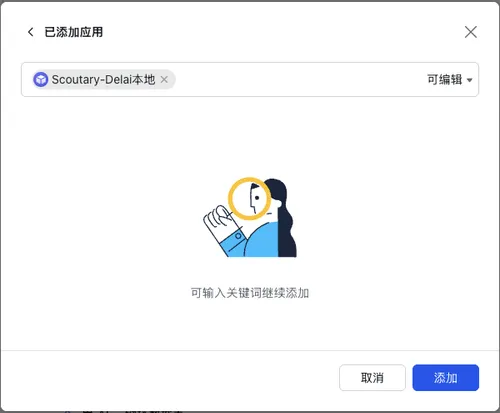
After the success message appears, confirm that the Scoutary app is listed under added apps with “Can edit” access. If the app is already listed, check its permission and change it to “Can edit” if needed.
Return to Scoutary and check again
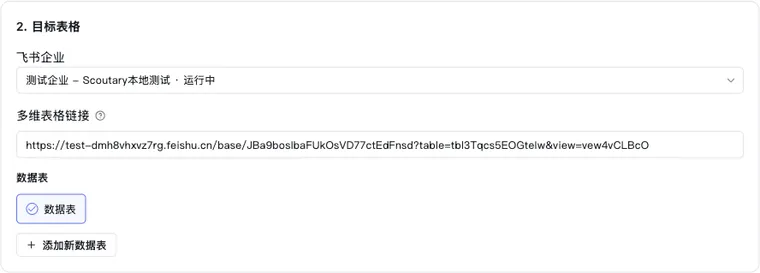
Return to the original Scoutary dialog and click “Check again”. Once access is effective, the page shows the available tables and loads the field mapping configuration. Continue with field mapping and the sync preview.
If access still fails
- Different organization: Confirm that the Feishu organization selected in Scoutary matches the target document.
- Different app: Confirm that the document app is the one used by this connection, rather than another app with a similar name.
- Read-only access: Ask the document owner to change the app permission to “Can edit”.
- Wiki link: The app also needs access to the corresponding wiki node. Ask the wiki or document administrator to check its permissions.
- Missing API permissions: If the error specifically says the app is missing API permissions, send the error to the app administrator. Adding the document app again will not resolve that error.
After making changes, return to Scoutary and click “Check again”.